
How to Upload Custom Fonts into Squarespace

Choosing the perfect font style that complements your brand is a key factor in launching a captivating website. Squarespace offers a wide range of built-in fonts available to use within the platform. However, adding custom typography can help personalize your site even more! Importing your own fonts can help your business stand out and elevate the look and feel of your brand.
Squarespace’s newest update makes adding custom fonts to your website simpler than ever! I’ll walk you through easy steps on how to upload your custom font, as well as how to best display them throughout your site.
Note: Before uploading your custom font, make sure that you have the appropriate licenses and permissions needed to use the fonts on your site.
Uploading Fonts
Step 1:
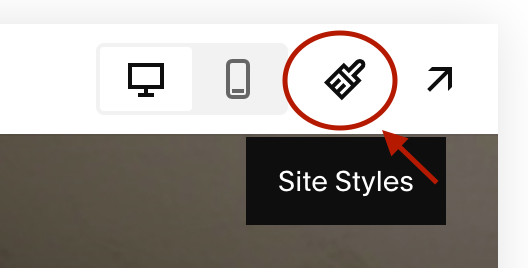
In the upper right-hand corner, navigate to the site styles section in your dashboard menu.
Step 2:
Click the > icon next to the Fonts section to get to the Fonts Manager.
Step 3:
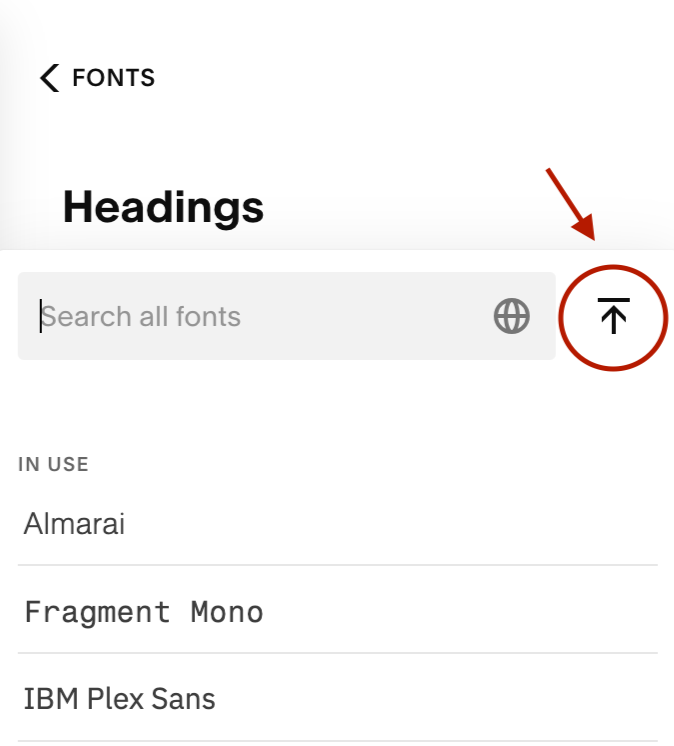
Click on one of the Font formats, such as Headings. In the font dropdown menu, click the upload button in the upper right-hand corner.
Step 4:
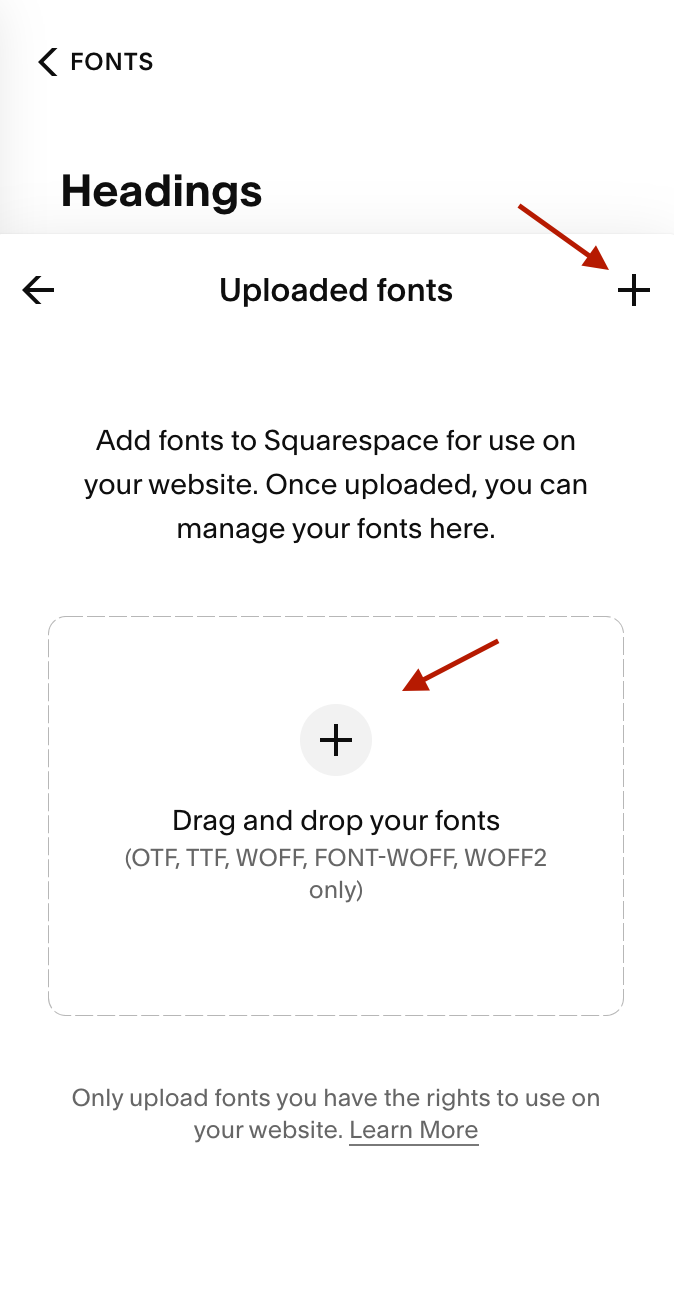
Import your font by either clicking the + icon and choosing the desired file from your computer, or you can directly drag and drop your font file into the upload window.
Note: Squarespace allows the following supported font file types:
.otf
.ttf
.woff
.woff2
Adding Custom Fonts to Your Site
Once you’ve uploaded the custom font to your site, choose the font format you’d like to assign your font to. You can use your custom font on any of the font sections on your page: this includes the Heading, Paragraph, Button Font, and Miscellaneous sections of your site.
Once you choose your desired font format, you can find your font in the uploaded fonts section or by using the search bar and typing in the name of your font.
Note: Although adding new fonts is a great way to elevate your site, be mindful that uploading too many fonts and font variations can slow down your site’s speed.
Now that you know how to further customize your site’s font, it’s time to get started! Take advantage of this newest feature to elevate your brand with ease.